Optimizing Zoom for Remote Training
Whether you’ve signed up for remote training sessions due to the pandemic or whether you’ve been taking advantage of long distance opportunities, virtual sessions can be a valuable and effective part of your training program. I’ve found virtual training to be surprisingly good in general and especially helpful with these benefits:
- Anxious or fearful dogs may be better able to learn without a stranger in the home.
- Travel time is eliminated, freeing up both trainer and client schedules and allowing for specialist sessions despite distance (and reducing mileage costs).
- Clients can replay recorded sessions to review coaching if needed.
- Clients need only declutter a small area without worrying about a visiting trainer seeing the rest of the house! (Don’t worry, though. Seriously, we’re not judging.)
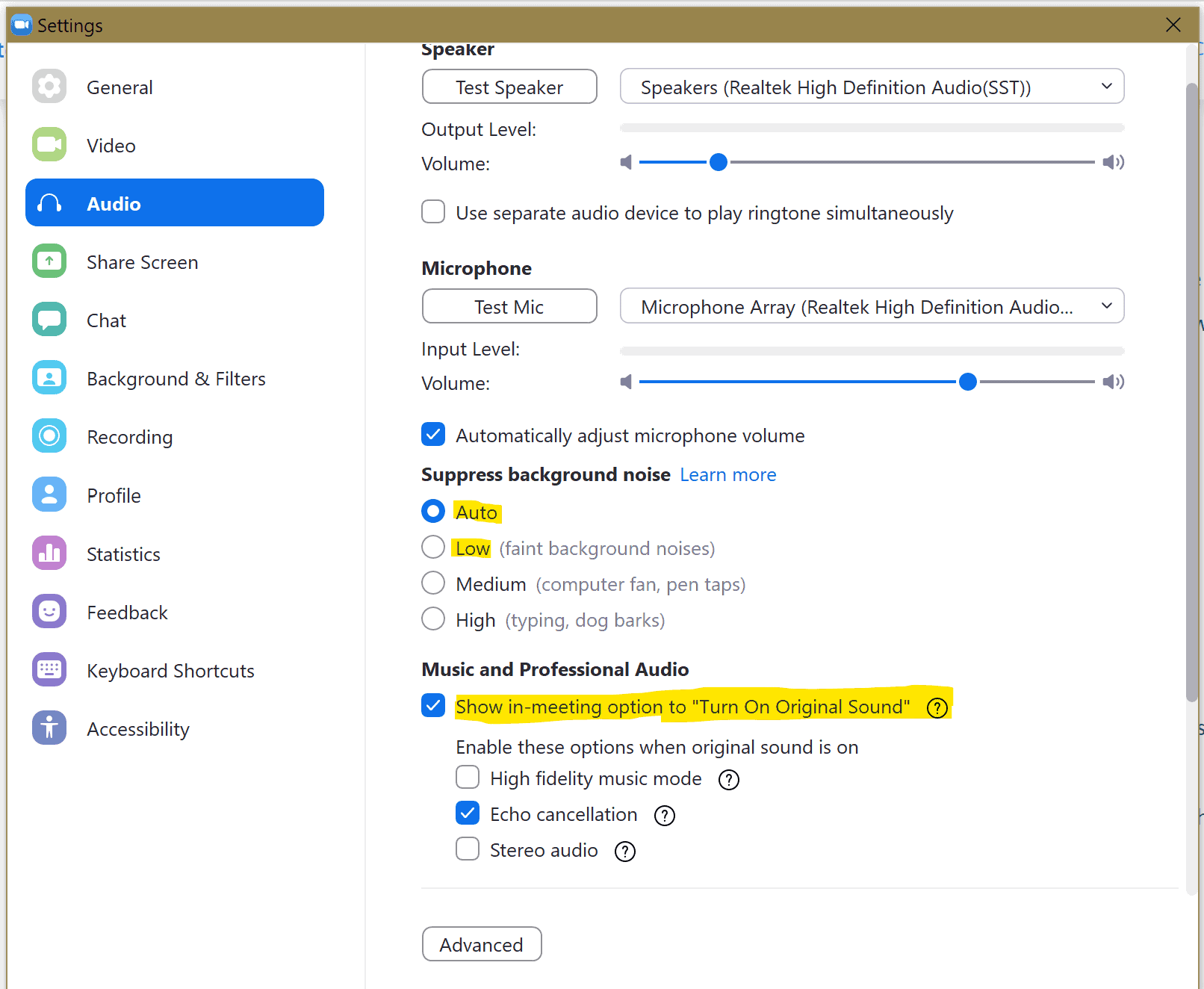
Zoom is great for virtual and remote sessions, however, Zoom was designed for meetings with humans speaking with human voices, and by design it attempts to suppress other sounds. This is great for muffling background noise during a complex financial meeting, but it’s not as helpful when we’re trying to hear a properly-timed click or subtle animal vocalizations! Here’s how you can optimize your Zoom settings to make your sessions as clear and helpful as possible. These instructions are for the Zoom app on a computer (not a mobile app or in a browser).